Chipp.in Tech News and Reviews

Windows, Security & Privacy, Open Source and more

Menu
  • Home
  • Windows
  • Security & Privacy
  • Gaming
  • Guides
  • Windows 11 Book
  • Contact
  • RSS Feed
Menu

Category: Android

Trading In Your Android? Here Are the Mandatory Steps to Follow

Posted on February 15, 2026February 15, 2026 by Martin Brinkmann

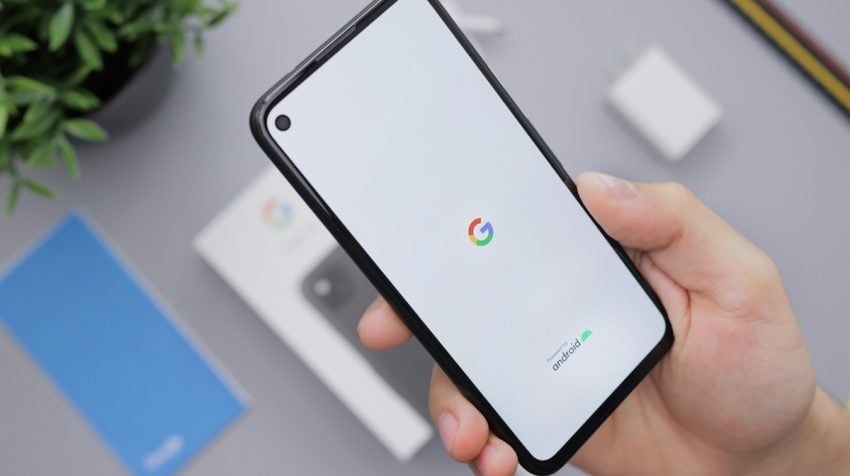
There are few feelings better than unboxing a brand-new smartphone, but that excitement can turn to frustration quickly if your trade-in gets rejected weeks later.

While most people remember to wipe their photos and messages, many overlook the invisible ‘digital locks’—like Factory Reset Protection—that can render a phone useless to a recycler and instantly drop your trade-in value to zero.

Before you seal that shipping box or head to the store, you need to do more than just a quick reset; you need to ensure your Android phone is completely unlocked, secure, and legitimately ready for its next owner.

The Pros and Cons of Trading in your old Android phone

The main benefit of trading in an old smartphone is that you get money for it. This is especially useful if you don’t need the old device anymore. Sometimes, merchants pay you extra when you trade in a device, even if the device is not worth as much anymore.

The downside is that you are giving away a device that you used in the past. Unless you are careful, it may be possible to access personal data or accounts.

Another issue is that you need to make sure that the device is not protected from being reset by the processing company or the new owner. If the trade-in company realizes that the phone is locked, it will reject it.

Here is a quick overview of the pros and cons:

ProsCons
Convenience and safety“Bill Credit” Trap
Inflated prices (sometimes)Low value without special promotions
Instant discountsGrading may sometimes disagree with your assessment
Environmental responsibleDelayed gratification

Note that I assume that you have moved the data from the old device to the new already. A good option for that is to connect both devices via an USB cable and start the transfer process this way.

The mandatory steps before sending the old device in

First, make sure that you back up all important data. This includes photos and videos, files, and anything else. It is a good idea to create a full phone backup, but you can also use internal features to create this backup. This ensures that you can restore the data, if the need arises.

Go to Settings > Google > Backup on the device. Note that this backs up essentials, such as contacts or device settings. The location may be different depending on the device manufacturer. Samsung device owners go to Settings > Accounts and backup, and select “back up data” there.

Backing up photos and videos is another story. You could back them up in the cloud, and Google is very pushy about this, or, and this is what I prefer, store them on a local computer instead.

Second, removing the Google account is essential. If you do not, you won’t disable Factory Reset Protection. This is designed to prevent the theft of devices, as the new owner needs the password of the previous owner to start using it.

Go to Settings > Passwords & accounts (or Users & accounts, or Manage accounts). Locate the Google account there and select the remove option. I suggest you do the same for any other account on the device, as this removes them all. The accounts on the new device are not affected by this.

Third, run a factory reset. This restores the original state of the Android device and removes all personal data from it. Go to Settings > System > Reset Options > Erase all Data. On Samsung, you find the setting under Settings > General management > Reset > Factory data reset.

Finally, remove any SIM-cards, eSIMs, or SD cards from the device.

Recommended Steps (good practice, but not mandatory for trading in)

Here is a quick list of tasks that you might want to consider as well:

  • Unpair any Bluetooth devices.
  • Remove any network connections.
  • De-register from chat services.
  • Save the phone’s IMEI number (dial *#06# to see it on the screen).
  • Charge the battery to at least 50 percent.
  • Document the phone’s condition with photos or video, also write down the information).

Ultimately, the difference between a successful trade-in and a rejected one often comes down to these few minutes of preparation. By ensuring your data is backed up and your Google account is fully removed, you’re not just protecting your privacy—you’re securing your payout.
Google tests Pixel Upgrade Program that always gives customers the newest Pixel

Posted on December 29, 2025December 29, 2025 by Martin Brinkmann

Ah, the yearly phone update. Manufacturers such as Google, Samsung, or Apple release new mobile phones each year. This means that the phone that you buy today is not the hottest piece of hardware after a (maximum) of one year of usage.

That is a problem for users who always want the latest mobile device in their hands.

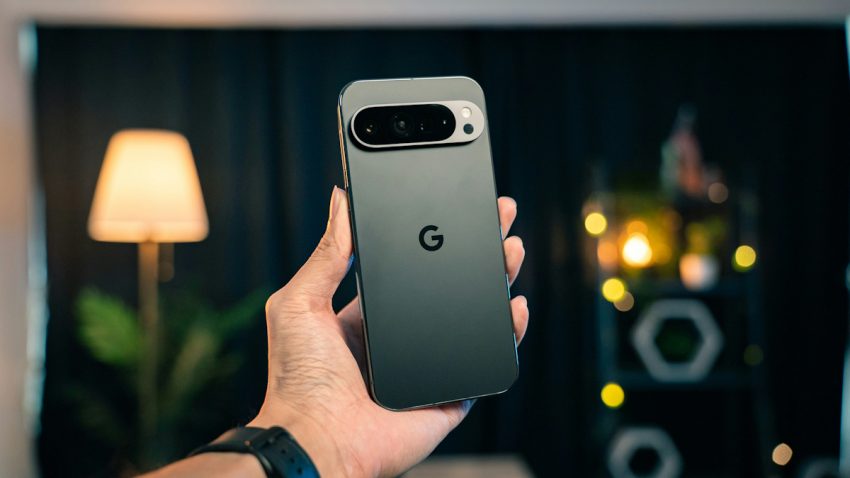
Google is testing what it calls the Pixel Upgrade Program in India. Announced on the official Google India blog, it sounds like a good deal on first glance: buy a new Pixel device, meet some requirements, and get future Pixel devices automatically while sending back your old devices.

This ensures, according to Google, that you have the latest and greatest Pixel device in your possession at all times.

Is there a catch? Yes, there is one. Google explains how the program works, and here are the caveats:

  • It is only available for no-cost 24-month EMI (Equated Monthly Installments) plans.
  • You need to buy the phone using credit cards from Google’s official partners Bajaj Finance or HDFC Bank.
  • You start a new EMI plan for each new Pixel device you get.

Between the ninth and fifteenth EMI, Pixel-users become eligible to upgrade. They need to trade the current Pixel device through Google’s partner Cashify. Provided that it “powers on and is free of unauthorized repairs”, an amount equal to the remaining loan balance is credited to the user’s bank account. This can be used to close the original loan.

From there, users need to start a new 24-month plan for the brand-new Pixel device.

ProsCons
Always have the latest Pixel device.Long-term renting, owning only if you make all 24 payments.
Predictable costs.Paying premium for (potentially) underwhelming upgrades
Bonus, e.g., free periods for Google AI Pro or YouTube Premium, restart with each phone.Limited to EMI and two banks.

Whenever a customer trades the old device in, the cycle begins anew. It is identical to a never-ending rent, with the benefit of getting the newest Pixel device each year.

Would I use it, if it would be rolled out worldwide? No, I would not. I do not buy in installments or on credit, and do not need the latest device each year. It may be different for others, who want or need the latest all the time.

What about you? Would you be tempted to join such a program to get the latest Pixel device each year? Feel free to leave a comment down below.

Android

Android is getting an option for experts for sideloading

Posted on November 13, 2025November 13, 2025 by Martin Brinkmann

Google announced plans earlier this year to change a fundamental cornerstone of the Android ecosystem: sideloading. The plan was to force all developers to verify their identity, even those who had no interest in publishing via the Google Play Store.

This was a stark change compared to the status quo. Currently, developers may choose to publish their apps outside Google Play, for instance only on F-Droid, and they can do so unhindered.

Under the new system, they would be forced to verify their identity. Google says that this is for improving security, while third-party stores like F-Droid claim that it is the end of sideloading as we know it.

The main issue, from F-Droid’s perspective, is that Google is dishonest when it states that sideloading is not going away on Android. The reasoning is simple: the definition of sideloading is “the transfer of apps form web sources that are not vendor-approved”. Under the new system, developers need to register an account with Google, pay a fee, provide verification, e.g. with government IDs, accept the terms and conditions, and more.

Google published an update to its plans today on the Android Developers Blog. There, Google explained why it is introducing verification in first place (to keep users safe).

However, Google says that it has listened to feedback and decided to integrate an option for experienced users, students, hobbyists and developers.

It says that it is building “a new advanced flow that allows experienced users to accept the risks of installing software that isn’t verified”. This new flow is designed to ensure that users cannot be forced to bypass the safety checks, even when under pressure from scammers.

Additionally, Google wants to display clear warnings to help users understand the risks involved.

How this is going to work is unclear at this point. Google says that it will share more details in the coming months about this new option.

Still, it could be a good compromise that allows developers and users to install apps from other sources, even if they are not verified by Google.

Now it is your turn. What is your take on this? Is it a good compromise or would you like to see something else entirely? Feel free to leave a comment down below.

Google Search

Google Messages is checking any image for nudity to potentially blur it

Posted on August 16, 2025August 16, 2025 by Martin Brinkmann

Google Messages is a dominant messaging app on Android devices. Installed and enabled on many devices by default, it is used to send messages. It supports several message formats, including SMS, MMS and Rich Communication Services (RCS), with RCS being the default protocol.

Google is rolling out a new protective feature in Google Messages that is designed to detect and blur images of nudity. It is enabled by default for non-adult accounts, but can be enabled for adult accounts as well.

When you receive an image in Google Messages, it may be blurred if the processing determines that it contains nudity and if the feature is enabled on the device.

You have multiple options in that case:

  • Block the sender’s number.
  • Open the image and confirm that you want to view the image.
  • Open a resource page that offers information on “why nude images can be harmful”.
  • Go back.

Google says that the entire processing of images happens on the local device and that no personal or identifiable information is submitted to Google servers as part of the processing.

Here is how you control the feature on an unmanaged device:

  1. Open Google Messages.
  2. Click on the profile icon.
  3. Select Messages settings.
  4. Tap on Protection & Safety.
  5. Activate Manage sensitive content warnings.
  6. Toggle “Warning in Google Messages” to on or off.

If you set it to on, incoming photos with nudity are blurred. Furthermore, sending a photo with nudity requires an extra step as well.

Is it a useful protective feature? It may blur images with nudity and includes an option to block the sender from sending more. There is a chance for false positives, but it is easy enough to turn off the feature if that is the case.

What is your take on this? Should services like Google, Meta, or Microsoft scan user images to blur, block or report them? Feel free to leave a comment down below.

Firefox

Mozilla plans to drop support for very-old Android versions

Posted on August 11, 2025August 11, 2025 by Martin Brinkmann

Mozilla plans to drop support for Android versions older than Android 8. Android 8 was released in 2017, which means that the move will affect users who use Firefox on mobile phones that are nearly a decade old or older.

Current mobile versions of Firefox require at least Android 5.0, which was released in 2014.

Mozilla announced the intention to raise the system requirements for Firefox on Android on the organization’s bug tracking website. And the organization has good reasons for wanting to drop support.

It allows Mozilla to “implement newer technologies” and prevents engineers from “being burdened by fixing bugs that only emerge on a small population of people using old devices”.

Also worth noting is that libraries that Mozilla is using are dropping support for Android 5, which causes additional problems for Mozilla.

With Android 15 (API 35) official release last Oct 15, 2024 (for Pixel devices), we should be considering bumping up the min Android OS version of the Firefox Mobile Browser up to Android 8 (API 26). Doing so allows us to implement newer technologies, and prevents us from being burdened by fixing bugs that only emerge on a small population of people using old devices. By bumping the min Android OS version, users on those devices will no longer receive app updates.

Additionally, we are increasingly finding that libraries we use are dropping support for obsolete versions like Android 5. This causes us big problems for ongoing maintenance of our apps.

Mozilla is not the only browser maker that bumped Android version requirements recently. Google dropped support for Android 7 and 8 recently with the launch of Chrome 139 for Android. Most Chromium-based browsers for Android are likely affected by the change going forward.

So, if you are still using an Android device that is no longer supported, and has not been for a few years at least, you may find yourself without a supported browser as well.

Will there be browsers that continue to support Android 8 or earlier? That remains to be seen. For now, both Vivaldi and Opera support Android 8, as will Firefox going forward.

Google Photos moves Memories to the Collections tab

Google Photos moves Memories to the Collections tab

Posted on March 21, 2025March 21, 2025 by Ashwin

Google has moved the Memories tab from the Photos app’s home screen. Don’t worry, the feature hasn’t been removed from the app.

Google Photos moves Memories to the Collections tab

For reference, Google had introduced Memories in 2023 to help users to revisit their old photos and videos from years ago, by curating some interesting pictures. Actually, there is a widget in the Photos app, which is also called Memories, it was released in 2021, and it kind of serves the same purpose.

A widget is cool, but it is easier to view Memories via a dedicated page. As I mentioned earlier, you can still access the scrapbook-like feature, but it has been moved to a new place. Memories are now part of Collections in the Google Photos app. The new section appears at the top of your image gallery, but it is no longer called Memories. It has been renamed to Moments.

Here’s something weirder, do you see the carousel at the top of the app’s main screen?, i.e. Photos, well it is called Memories. That’s not confusing at all, right? I’m not entirely sure why this was done, but there it is.

Google Photos Memories is now Moments

You can access your Moments from the Collections tab to add more details to the images and videos, search for something specific, or share them with your loved ones.

The Google Photos home screen on the other hand is now simpler, with just three options on the bottom bar: Photos, Collections and Ask/Search. This is what the Mountain View company was going for, to make the main page more compact. It did the same thing with Google Maps, so at least there is some uniformity in the design.

This change isn’t something that happened out of the blue, Google began pushing this change last year in the Photos app for iOS, before it was introduced in the Android version.

According to 9to5Google, the removal of the Memories tab started in January this year, but it seems to be rolling out on a wider basis with Google Photos version 7.2.0 on Android and iOS. If you don’t see the Moments section on your phone yet, you may want to check the Play Store or the iOS App Store manually to see if an update is available for the app.

Tip: Check out Martin’s article to learn how to use Google Takeout to organize your Photos automatically.

This renaming/redesign may feel like an unnecessary change to some users, and I agree. Memories was a fine name, renaming it was pointless, and now it takes an extra step to access your Moments, that doesn’t make sense either. It’s not like the shortcut was taking up a lot of space on the bar, and phone screens are getting bigger not smaller, resizing the icons to fit more options would be the user-friendlier choice. Burying options under menus and subsections usually result in fewer people using a feature.

Oh well, it’s just one of those Google things! I wouldn’t be surprised if these redesigns were done to make room for adding some AI-powered options in the future.

Google Pixel 9a

Google Pixel 9a announced for $499

Posted on March 20, 2025March 20, 2025 by Ashwin

Google has launched the Pixel 9a. The mid-range phone runs on Android 15 out of the box, with an update policy of 7 years of OS, security and Pixel drop updates.

Google Pixel 9a

As one might expect, the Pixel 9a ships with Gemini built-in, but it doesn’t include a subscription for Gemini Advanced.

The phone is powered by an in-house Google Tensor G4 processor, with 8 GB of RAM and 128/256 GB of storage. It has a Titan M2 security coprocessor, an optical fingerprint scanner, to protect user data which is end-to-end encrypted locally.

There is no camera island across the device’s rear panel, the dual cameras are instead housed in a regular array. The primary lens is a 48 megapixels wide angle camera that supports Optical Image Stabilization, Electronic Image Stabilization, and can record 4k videos at 60 frames-per-second. The other camera is a 13 megapixels ultra-wide angle lens.

The Pixel 9a is capable of AI-powered photography features like Add Me which combines group photos), Best Take which blends facial expressions from multiple photos, and Magic Editor that can reframe your photo, suggest best crop, auto-expand the scene, add effects, etc. In addition to these the Pixel 9a also supports various editing features such as Magic Eraser, Audio Magic Eraser, Night Sight, Astrophotography, Panorama with Night Sight, Photo Unblur.

Moving to the front, the Pixel 9a has a 13 megapixels wide angle camera for selfies, which is housed at the top of the screen. As for the design, the phone has thick bezels running around the edges. The screen is a 6.3-inches Actua Display, and it supports 120 Hz adaptive refresh rate, HDR, and is protected by Corning Gorilla Glass 3.

Google has managed to fit in a chunky 5,100 mAh battery in the phone, which it says will offer 30+ hours of battery life. The handset is IP68 certified for dust and water resistance. More interestingly, Google claims that the Pixel 9a has drop protection, which should make it durable.

Google Pixel 9a tech specs

  • Processor: Google Tensor G4
  • Security: Titan M2 security coprocessor, Fingerprint Unlock, Face Unlock
  • Memory: 8 GB RAM
  • Storage: 128 GB / 256 GB
  • Screen: 6.3-inches Actua Display, 120 Hz adaptive refresh rate, 20:9 aspect ratio, Corning Gorilla Glass 3, 1,000,000:1 contrast ratio, HDR, 2,700 nits brightness
  • Operating System: Android 15
  • Front Camera: 13 MP f/2.2 aperture, 96.1° FoV, 4k video @ 30 fps
  • Rear Cameras: 48 MP Wide f/1.6 aperture, 82° FoV, OIS + EIS, 0.5x and 1x optical zoom, Super Res Zoom – up to 8x, 4K video capture @ 30/60 fps, 5x digital zoom + 13 MP Ultra-wide angle f/2.2 aperture, 120° FoV
  • Battery: 5,100 mAh, Fast Charging, Qi Wireless Charging
  • Port: USB Type-C 3.2
  • Audio: Stereo speakers, 2 microphones
  • Connectivity: Dual SIM (Single Nano SIM and eSIM), 4G LTE, 5G Sub 6GHz, Wi-Fi 6E with 2.4GHz+5GHz+6GHz, 2×2 MIMO, Bluetooth v5.3, NFC, Google Cast, Dual Band GNSS, GPS, GLONASS, Galileo, Beidou, QZSS, NavIC
  • Sensors: Proximity sensor, Ambient light sensor, Accelerometer, Gyrometer, Magnetometer, Barometer
  • Update policy: 7 years of OS, security and Pixel drop updates
  • Rating: IP68 water and dust resistance
  • Dimensions: 154.7 mm x 73.3 mm x 8.9 mm
  • Weight: 185.9 g

Google Pixel 9a price and availability

The Pixel 9a starts at $499 for the 128 GB model, while the 256 GB version costs $599. The device will be available at the Google Store and retail partners beginning in April. The Pixel 9a comes in 3 colors: Obsidian, Porcelain and Iris.

Microsoft Edge for Android: more extensions now available, but one group is missing entirely

Posted on March 15, 2025March 15, 2025 by Martin Brinkmann

When Mozilla — finally — introduced support for extensions in Firefox, years to late, but still, it unlocked a whole new world for users of the mobile open source browser.

Up until that time, no major browser supported extensions no mobile. While there were some dedicated projects that supported mobile extensions, all major browsers did not. Imagine having to browse the Web without a content blocker.

The next best thing were browsers with integrated ad blockers. Vivaldi, Opera, or Brave come to mind.

Now that Firefox supports extensions, Microsoft has also moved on that front and integrated support for extensions in Edge for mobile.

Like Mozilla’s offering initially, Microsoft is limiting available extensions right now. Unlike Mozilla, Microsoft is not offering a single content blocker at this point.

Extensions in Edge Stable for Mobile

Once you have upgraded Edge Stable to the latest version on Android, you gain access to extensions with a click on Menu > Extensions. There you find the list of supported extensions. Some good ones are available, including Tampermonkey, Dark Reader, or Bitwarden Password Manager. There is also a video downloader, cookie manager, and some other useful extensions.

What you do not get is a content blocker. Granted, with Google’s decision to stop Manifest V2 extensions from working in Chromium and Chrome, popular choices like uBlock Origin are no longer compatible. But the lite version is also nowhere to be found. The same is true for other content blockers.

Microsoft does not explain why that is the case, only that more extensions “are coming soon”. So, the good news is that Edge is getting support for a wider range of extensions. The bad news is that no extension of, probably, the most popular extension type is available.

Closing Words

Support for extensions is a welcome feature on mobile, as it gives users more options to customize their experience while using the browser. Content blockers are a must, and it is puzzling that Microsoft has not added a single one to the list of supported extensions at this stage.

So, for now at least, you might want to stick to Firefox, the one browser with excellente mobile extensions support. Or, at least a browser with a proper content blocker, like Brave.

Microsoft reportedly showing ads in Microsoft 365 app for Android

Posted on December 3, 2024December 3, 2024 by Martin Brinkmann

Is it an experiment, rolling out to everyone, or a bug? Reports are coming in that users are starting to see ads in the Microsoft 365 application for Android when they open PDF documents in the app.

The ad shows up at the top of the screen underneath the title of the document. It features a close button, but that closes it just for the current PDF document and has no effect on future documents that users view in the app.

User Longhorn describes the experience on an independent Mastadon server:

The PDF reader in the Office app on Android has built-in ads.

Even if you have an @Microsoft 365 subscription, ads do sometimes show up.

That’s utterly insane. That particular ad I got was powered by Taboola under the hood.

Another user chimed in and said that ads are also showing up for other documents opened in the application.

I tried to replicate this by opening several PDF documents and Office documents in the app, but they did not show up. It is possible that they do get blocked by the privacy-focused DNS service that I use, as it blocks most ads on Android devices.

Microsoft has been experimenting with advertisement in its products before and still is. Various sections and apps by Microsoft on Windows show ads. While some might argue that a recommendation for another Microsoft product is not an ad, I’d beg to differ.

Third-party apps are also a thing. The Copilot feature that is integrated into Windows may show third-party ads.

Ads in the Microsoft 365 app are not out of the question therefore. It would be a serious blow to subscribers, if Microsoft intents to show ads to them as well.

If Microsoft is rolling this out, we are likely going to see more and more comments about it on various places on the Internet.

What is your take on ads in apps? Do you mind, if they are free? What about paid apps? Feel free to leave a comment down below.

Android may soon warn you when you download a low quality app

Posted on November 26, 2024November 26, 2024 by Martin Brinkmann

Is the app any good? This is probably one of the first questions that come to mind when you stumble upon a new app.

User reviews and ratings, as well as other information, such as the developer’s history of application releases, only help that much.

Google appears to be working on a new Google Play feature for Android that may warn users about apps before the download is started.

A report by Android Authority suggests that Google is working on such a feature. A deep-dive into the lastest release brought the information to light, according to the site.

So, how is Google going to determine if an app is low quality? Messages baked into the app give clues:

  • This app is frequently uninstalled compared to similar apps on Play
  • Play has limited user data about this app
  • This app has few active users compared to others on Play

Android Authority says that the messages will be displayed on an application’s “details page” on the Play Store. In other words, Google won’t display popups that warn users about a potentially low quality app.

The messages cover several scenarios. The first looks at uninstalls. If an app gets more uninstalls than comparable apps, it may be considered low quality by Google.

The second is for new apps. If Google Play has little data about the app, it may warn users. This does not necessarily mean that an app is low quality. All apps start with zero installs and reviews after all.

The third looks at user activity while the app is installed. If it is lower than that of comparable apps, Google may also show a warning.

There may be others, but that is all that Android Authority could extract from the latest Play Store APK file.

No clear definition of low quality

There is no strict definition of low quality. That is likely the reason why Google is not showing popups about certain apps, but adding information to the application’s page on Google Play instead.

Especially new apps cannot be judged by common metrics. They have no or only a few reviews or ratings, and the lack of users makes other metrics, such as user engagement, also difficult to use.

Still, the information that Google provides may be useful in a user’s decision making process.

What is your take on Google’s plan? Do you think it is useful? Feel free to leave a comment below.

  • 1
  • 2
  • 3
  • 4
  • Next

Support This Site

If you like what I do please support me!

Any tip is appreciated. Thanks!
  • March 2, 2026 by Martin Brinkmann Don't Bother with Windows 11's new Speedtest feature
  • February 27, 2026 by Martin Brinkmann Warning! That laptop on Amazon? It comes with temporary storage
  • February 26, 2026 by Martin Brinkmann "If your printer works today, it will continue to work": Microsoft corrects previous announcement
  • February 25, 2026 by Martin Brinkmann YouTube Premium Lite subscribers get background playback and downloads with a big "but"
  • February 24, 2026 by Martin Brinkmann Firefox 148.0 is out with its AI kill switch and support for Windows 7 and 8.1 comes to an end

About

We talk, write and dream about Technology 24/7 here at Chipp.in. The site, created by Martin Brinkmann in 2023, focuses on well-researched tech news, reviews, guides, help and more.

Legal Notice

Our commitment

Many websites write about tech, but chipp.in is special in several ways. All of our guides are unique, and we will never just rehash news that you find elsewhere.

Read the About page for additional information on the site and its founder and author.

Support Us

We don't run advertisement on this site that tracks users. If you see ads, they are static links. Ads, including affiliate links, never affect our writing on this site.

Here is a link to our privacy policy

©2026 Chipp.in Tech News and Reviews