Chipp.in Tech News and Reviews

Windows, Security & Privacy, Open Source and more

Menu
  • Home
  • Windows
  • Security & Privacy
  • Gaming
  • Guides
  • Windows 11 Book
  • Contact
  • RSS Feed
Menu

Author: Martin Brinkmann

When I was young, I studied German, History and English at Essen University in Germany. I worked in computer support for several years at the time to help other computer users when they ran into issues. Writing started out as a passion project, as I wanted to help more users and not just the ones that I handled in support. This lead to the founding of Ghacks Technology News in 2005. First, as a side-project, but shortly thereafter as a full-time project as the site's popularity exploded. I sold Ghacks to Softonic some years ago, but stayed on as Editor. You can still read my articles on the site. I do publish on Betanews as well. In recent years, I started to write and publish technology books, including my latest book "Windows 11 From Beginner to Advanced", which is available on Amazon. I'm also a freelance writer for the German publisher Gamestar. Chipp.in is my newest project. I want to use it to talk about my book projects, sell my books directly, and write about technology, as this is what interests me.
History

How to remove an entire site from your browser’s history

Posted on February 19, 2024February 19, 2024 by Martin Brinkmann

This guide explains how to remove all history entries of a specific websites from the browser’s Google Chrome, Microsoft Edge, Brave, Vivaldi, Opera, and Mozilla Firefox. It should work in most other browsers as well.

All web browsers record the websites that you visit while using them. The browsing history serves two main purposes: to highlight previously visited sites when you type in the address bar, and as a record for the user to look up previously visited sites.

Sometimes, you may want to remove sites from the browsing history. Maybe because you do not need a record of the site anymore or want it to disappear completely from the browsing history.

All desktop browsers include functionality to do that. Problem is, it is not clear exactly how it is done. Opening the browsing history displays all visited sites, but there is no option to remove a specific site from the browsing history.

Clearing the entire history works, but it results in a loss of all records.

Delete a site from Google Chrome’s history (and other Chromium-based browsers)

Remove site from browsing history in Chrome

The general method of removing a site’s records from the Chrome browsing history works also in all other Chromium-based browsers. It works in Microsoft Edge, Brave, Vivaldi, Opera, and all other desktop versions of these browsers.

Here are the required steps:

  1. Select Menu and then History > History in the browser. You may also use the keyboard shortcut Ctrl-H to open the history, or load chrome://history/ directly.
  2. Use the search history field at the top to find all entries of the website that you want to delete. The best option is to type its domain name, e.g., chipp.in.
  3. Scroll all the way down to the end. Chrome lists only some of the entries by default. You may also repeat the operation multiple times if there are too many records.
  4. Now check the box of the last entry on the page.
  5. Scroll all the way to the top.
  6. Hold down the Shift-key and click the box of the first history entry. All entries are now checked.
  7. Select the Delete option.
  8. Confirm the deletion.

Here is how this looks in other Chromium-based browsers:

Brave remove site from history
Microsoft Edge delete site from history

The process should work in all Chromium-based browsers. Most redirect chrome://history to “their” internal page protocol, e.g., vivaldi://history or edge://history/all.

How to clear a site from Firefox’s browsing history

Firefox delete website from history

Mozilla’s Firefox web browser supports a similar feature. It works differently, as it is not based on Chromium.

Here are the steps in Firefox:

  1. Select Menu > History > Manage History.
  2. Use the search field to find all records of the website.
  3. Switch from the “Today” filter to “History” to see all records of that site.
  4. Use the keyboard shortcut Ctrl-A to select all entries.
  5. Right-click on the selection and select “Delete pages”. Note that there is no confirmation.

What about other records?

Deleting a site from the browsing history removes records of visits only from this database. Other databases may still store information about the site. There is the downloads history, which may have records if you downloaded files from the site.

Sites may also place content on the computer, e.g., as cookies or site data. These do not get cleared when you delete the browsing history.

How to delete other site records in Chrome and other Chromium-based browsers

Chrome Delete Site Data and Cookies

It is relatively easy to delete site data and cookies in Google Chrome and other Chromium-based browsers.

  1. Select Menu > Settings in the web browser.
  2. Open Privacy and Security.
  3. Select Site settings on the page that opens.
  4. Click on “View permissions and data stored across sites”.
  5. Use the search at the top to find a site.
  6. Click on the trashcan icon next to it to remove it.
  7. Confirm the operation with a click on the delete button.

Note: this removes offline data and logs you out of the site.

Do the following to remove the downloads history in the browser:

  1. Load chrome://downloads/ in the browser’s address bar.
  2. Use the search at the top to find all records of a site.
  3. Activate the x-icon next to each to remove the records.

Deleting site records in Mozilla Firefox

Firefox remove site data and history

You may also remove cookies and site data records in Mozilla Firefox.

  1. Load about:preferences#privacy in the Firefox address bar. This opens the Privacy preferences.
  2. Scroll down to the Cookies and Site Data section.
  3. Activate the “Manage Data…” button there,
  4. Use the search field at the top to find a specific website.
  5. Click “remove all shown”. Firefox deletes the entry immediately without confirmation.

Here are the steps to clear all downloads from a specific site:

  1. Select Menu > Downloads or use the keyboard shortcut Ctrl-J to open the Downloads interface.
  2. Use the search at the top to find downloads from a specific site.
  3. Use Ctlr-A to select all downloads.
  4. Press the Delete key to remove all entries from Firefox’s history.

How to zoom in on any video in Windows

Posted on February 17, 2024February 19, 2024 by Martin Brinkmann

Windows users have several options when it comes to zooming in on any video. This guide lists two of the best options to zoom videos on Windows. The first works for any local video file, the second for any video that you play on Windows.

Zoom is a useful feature to enlarge an entire video or part of it. It is ideal for looking closer at details in a video among other things.

It may come as a surprise, but many video players do not support zoom at all, or only in a way that is not very useful.

The new Media Player in Windows does not support zoom. The classic Media Player does, but it is only a matter of time before it gets removed. Popular apps like VLC Media Player support zoom functionality, but it too is lacking.

There is one video player on the other hand, that supports zoom in a user friendly way. All you have to do is hold down a key to draw a rectangle around the area that you want to zoom in. Or, and that is another option, you may tap on a key on the keyboard to zoom in or out at any time. Very convenient.

Zoom in on any video using PotPlayer

PotPlayer is a free media player for Windows. You can download it from the developer website or the Microsoft Store.

The media player is powerful; it offers lots of features and options. While that is great, it may also discourage some users.

PotPlayer supports major video formats out of the box. Just install the app on your device and make it the default media player to get started.

Videos play in windowed mode by default, but you may change that if you want. You can use zoom in and out functionality right away by pressing 9 or 1 on the numerical keypad.

A tap on 9 zooms in on the entire video. You may press 5 at any time to reset the zoom level.

To get the rectangle zoom option, do the following:

  1. Select PotPlayer in the top left corner and then Preferences from the menu. You may also press F5 directly to open the options.
  2. Switch to the Mouse tab in the Preferences.
  3. Check “Activate Alt, Ctrl, Shift + Mouse Drag to Pan, Zoom and Stretch the image”.
  4. Select OK to complete the process.

Once done, hold down one of the modifier keys, e.g., Ctrl, before drawing a rectangle on the video to zoom in that specific area.

You may then hold down the Ctrl-key while using the Numpad keys 2,4,6, and 8 to move around on the screen. Note that the zoom level is extreme, and that you may get better results using the Numpad to zoom in on a video.

Using the built-in Magnifier tool to zoom in on videos

Magnifier is a built-in accessibility tool that you may run with the keyboard shortcut Windows-+ (Windows-key and Plus-key). It opens the Magnifier interface, which you may use to change the zoom level and make some other changes.

You may want to open Start > Settings > Accessibility > Magnifier first to customize the zoom level. It defaults to 100% steps, which may be a bit much. You may change the steps on the page and make some other adjustments as you see fit.

Note: To exit Magnifier in Windows, press the Windows-key and the Esc-key at the same time,

Magnifier zooms in anywhere on the screen. This makes it a good tool for zooming in on videos. Just play a video in a browser or locally, and use Magnifier to zoom in or out while the video plays or is paused.

Now You: do you use zoom functionality on your systems?

Uninstalr review: powerful Windows software uninstaller

Posted on February 16, 2024February 16, 2024 by Martin Brinkmann

Uninstalr is a free Windows software uninstaller. You may download a portable version or installer from the developer website. It runs on Windows 7 and newer versions of Windows.

The application supports several features that are often only found in commercial uninstallers: monitor software installations, deep cleaning, batch removals of apps and support for a variety of software stores and distribution platforms.

Uninstalr: the basics

Windows software uninstaller Uninstalr

The Windows software uninstaller scans the system on start. This may take a moment, depending on the number of installed programs and the system’s performance.

The list includes installed programs but also leftovers from apps that were previously installed on the device.

Tip: open the program preferences first and uncheck the automatic system restart option after software uninstallations.

Each program is listed with its name, developer, size on disk and type. Filters at the top give you options to create custom lists. You may display only leftovers or only programs from Steam, among other options. Microsoft apps are hidden by default, but you may enable these as well.

Removing programs is easy. Select one or multiple of the listed apps with a left-click and activate the uninstall button afterwards. You may also select “show data” first. Show data lists all found locations, files, folders, and Registry, of the selected apps.

The program lists the information when you active the uninstall option. The removal deletes the programs entirely from the system. It is recommended to restart the Windows PC afterwards.

Core features of the Windows software uninstaller

Uninstalr’s core feature is the removal of one or multiple programs from Windows PCs. Additionally, it supports monitoring software installations for easier cleaning in the future.

Using the program is simple. Run it, wait for the scan to complete, and select apps to remove. This process worked well during tests.

I still recommended that you create a system backup of the main partition for safety reasons.

Besides cleaning leftovers from the Windows PC, you can also use it to find and uninstall large programs. Note that the sort options appear bugged at the time. The sort by size option did not work correctly during tests. It allows you to sort apps by size.

Select “New Software Monitoring” in the interface to monitor a software installation. The Windows software uninstaller monitors installs automatically at this point.

It lists the program when you run its installer. Note that this does not work for portable apps. Some installations were not detected by the application either while running. Still, you do benefit from the leftover scan option in any event.

Should you use Uninstalr immediately?

Should you use Uninstalr immediately to remove Windows programs, or the default Windows uninstaller first?

This depends. If you used uninstaller to monitor software installs, then you may use the program immediately for the removal. if you did not, use the Windows tool first and then Uninstalr to take care of leftovers.

You should not run into any issues removing apps with Uninstalr directly either.

Comparison to WinGetUI

WinGetUI is a user interface for winget. It allows you to install and uninstall Windows software. A core difference between the two apps is that WinGetUI does not scan for leftovers.

It is still useful, for instance for installing programs on Windows or removing bulk programs. After using it to remove apps, you may want to run Uninstalr to benefit from its leftover removal functionality.

Closing Words

Uninstalr is a powerful software uninstaller for Windows. The program is ideal for removing leftover files and Registry entries from already removed software installations or portable app installations.

Notes

Evernote makes 14 premium features available to free users, but there is a catch

Posted on February 15, 2024February 15, 2024 by Martin Brinkmann

Long-standing note taking service Evernote announced today that it is giving free users access to 14 premium features. These features were only available to personal or professional subscribers previously. Now, they are available to all Evernote users.

Note that personal subscribers benefit from this change as well. Six of the features were limited to professional subscribers.

Evernote

Evernote’s premium features that are now free

Here is the list of features that are now free:

  • Note history and restore — option to view and restore old versions of notes.
  • Offline notes and notebooks — access notes while offline. Updates are synced the moment Internet connectivity is restored.
  • PDF annotation and export — annotate PDF documents, e.g., use highlight, reactions or anonymize content, and export notes or entire notebooks as PDF documents.
  • Business card scanning — scan business cards to add the information to notes.
  • Spreadsheet preview — view spreadsheets added to notes in Evernote.
  • Boolean, geographic, document & image search — use new search options to find content. This includes finding text in PDF and Word documents, images or scanned documents.
  • Email notes and share notes via email — options to use email to add notes to Evernote and to share notes via email.
  • Customize global shortcut keys and the create button on mobile.
  • Create custom templates.

The elephant in the room

While it is great to see that Evernote is pushing previously paid features to free and personal users, there is still one issue: free users are limited to one notebook and fifty notes. Evernote imposed the restriction at end of 2023.

While 50 notes may be sufficient for some users of the service, many may run into the limit quickly, if they use Evernote regularly. One option to deal with it is to delete old notes regularly. May work for some users, but one of the great features of note taking services is that you can keep a history of notes, if you want to.

Considering that Evernote charges $14.99 per month for its cheapest plan, many users may prefer to use an unrestricted service. I mentioned alternatives in the linked article above. If you want a recommendation, try the open source Joplin app. You can import Evernote notes into it and never look back.

This was not the first time that Evernote reduced functionality for free users of the service. Back in 2016, Evernote restricted free user access to 2 devices from unlimited.

It is also interesting to note that the cheapest plan cost $29.99 per year back then, a sharp contrast to the current pricing.

Closing Words

Note taking apps are useful, there is no doubt about it. While the good old system of using paper notes won’t die anytime soon, digital notes offer several advantages. Search, the option to look up previous versions, and the ability to store thousands of notes need to be mentioned.

Now You: do you use a note taking app?

Google Chrome

Google says it has optimized Safe Browsing in Chrome

Posted on February 14, 2024February 14, 2024 by Martin Brinkmann

Safe Browsing is a core security feature of Google’s Chrome web browser. The technology is also used by other browsers, often indirectly to improve privacy.

Google revealed in a new post on the Chromium blog that it has optimized Safe Browsing checks in the Chrome web browser.

The changes bring a performance boost to Safe Browsing checks thanks to the use of asynchronous checks. Some checks are also reduced to reduce their impact on the page loading time.

Safe Browsing: Asynchronous checks

Safe Browsing checks block pages from loading. This is a security precaution to ensure that malicious content is blocked before it can be loaded by the Chrome browser.

This is usually not a problem for local checks according to Google. Checks on Internet websites, on the other hand, add latency to the loading of the page.

Google Chrome 122 enables asynchronous Safe Browsing checks. This allows sites to load content during checks. Google says that this will reduce page load times in Chrome and improve the overall user experience.

Chrome continues to show a warning page if Safe Browsing determines that a page or one of its resources is problematic.

There is also potential for improving new artificial intelligence and machine learning algorithms “to detect and block more phishing and social engineering attacks” according to Google. These experiments could affect the page loading time further in the past.

Risks associated with the change

Since pages may load while Safe Browsing checks take place, there is a chance of attacks.

Google says that it has evaluated two common attack types and concluded that sufficient mitigations are in place:

  • Phishing and social engineering attacks — Phishing sites may load while checks are still ongoing. Google believes that it is unlikely that users will have the time to interact with the site in a way that would impact security. Selecting a password field and typing the password, for instance, should take longer than the Safe Browsing check.
  • Browser exploits — Chrome has a local list of sites that attack using browser exploits. Checks continue to be made asynchronously and Google recommends keeping Chrome up to date to block most attacks from being effective.

Sub-resource and PDF checks

Two additional checks are listed by Google that are impacted by the optimizations.

  • Sub-resource checks — attacks using sub-resources are declining, according to Google. New protections, including intelligence gathering, threat detection, and Safe Browsing APIs, protect users in real-time without specifically needing to check sub-resources. As a consequence, Google Chrome will no “longer check the URLs of sub-resources with Safe Browsing”.
  • PDF download checks — Google reduced the frequency of PDF download checks. PDF documents were used for attacks in the past, but widespread attacks are rare thanks to improvements to Chrome’s PDF viewer. Google notes that most PDF files use links for attacks. These link may open in Chrome, which gives Safe Browsing a chance to block the attack.

Closing Words

Chrome Safe Browsing

Google benefits from the reduction in changes. PDF checks alone reduce Safe Browsing checks “billions of times” each week. The removal of checks may push certain forms of attacks again. Sub-resource attacks may see a revival as malicious actors find new ways to exploit the change.

Chrome users may check the browser’s Safe Browsing preferences under chrome://settings/security. There they find the two main options — standard and enhanced protection — as well as an option to turn off the security feature entirely.

Resolutions

Super Resolution promises better game graphics on Windows 11

Posted on February 13, 2024February 13, 2024 by Martin Brinkmann

Automatic Super Resolution is a new Windows graphics feature that is currently in development. The main idea behind it is to use artificial intelligence to “play games more smoothly with enhanced details” according to Microsoft.

Modern PC games may tax a system’s hardware. If the system is older, users may notice slowdowns or reduced graphics details. One way of dealing with this is to reduce the resolution of the game or its graphics details.

While that may improve frames per seconds, it also reduces the visual quality of the game.

Super Resolution

Automatic Super Resolution

Automatic Super Resolution is a new feature that is in testing right now. The experimental feature was spotted by Twitter user PhantomOcean3.

The support page returns a 404 error at the moment, which is why we know little about the actual functionality of the feature. What we know is that Windows may use AI to improve the performance and visual quality of games.

It is unclear if this is marketing-speak for upscaling, a technology that has been around for a long time.

A second screenshot shows some of the available options. Besides on and off toggles, Super Resolution supports enabling the feature while keeping the display resolution and configuring the feature for individual games and apps.

Super Resolution preferences

Super Resolutions everywhere

Several companies announced similar features in the past. Qualcomm announced Game Super Resolution back in April 2023, which, as Qualcomm put it, promises “increased battery life, higher resolutions and improved frame rates on mobile devices”.

Qualcomm’s solution uses upscaling to achieve this; the company avoided the term AI entirely during the announcement.

NVIDIA’s RTX Super Resolution technology is designed specifically for videos. It upscales videos up to 4K, but requires modern NVIDIA video cards for that.

Microsoft introduced Turing Image Super Resolution back in 2022 in Microsoft Edge. The company cut the “Turing Image” part of the name later that year. It too promises to upscale low resolution images to higher resolutions.

Closing Words

Playing games smoothly at higher resolutions is something that most gamers will be interested in. The main question is how effective Microsoft’s solution is. Another, if it requires certain hardware features to work.

While it is not possible to upscale games beyond the supported resolution of the monitor, Super Resolution could help gamers on older devices especially. If, and that is a big if, the feature does not require specific hardware.

The functionality may also be of interest for classic computer games. Older games may support resolutions of 800×600 or even lower only. These do not look good on modern displays with 1080p or 4k resolutions, usually.

If Microsoft gets this right, it could give certain older PC games a much needed visual boost.

As for when Super Resolution lands. The most likely target is the 2024 feature update for Windows 11.

Now You: would you use the feature to play games on your devices?

Amazon Prime Video Ad Free

Amazon removes Dolby Atmos and Dolby Vision support for regular Prime Video subscriptions

Posted on February 12, 2024February 12, 2024 by Martin Brinkmann

Amazon introduced advertisement in Prime Video in the beginning of February 2024 for all Prime subscribers. All Prime subscribers who watch Prime Video content get ads by default when they do so.

While Amazon did show trailers, another form of promotion, before shows and movies, it did not show ads on top of that up until now.

Amazon introduced an Ad Free add-on option to Prime subscribers. Available for an extra $2.99 per month, Ad Free promises do remove advertisement from the Prime Video experience. This add-on removes the “new” ads, but not trailers from Amazon Prime Video.

The introduction of video ads on Prime Video is not the only change, apparently. Prime Video subscribers who use Dolby Vision or Dolby Atmos cannot use the functionality anymore by default according to reports.

In other words: only customers who pay the extra $2.99 per month get support for Dolby Vision HDR and Dolby Atmos. Amazon appears to have removed support silently and without notice.

Amazon is silent

All Amazon Prime and Prime Video subscribers are subscribed to an ad-powered plan by default now. Up until now, it appeared that this was the only change that Amazon implemented.

Amazon has received criticism for how it introduced the ad-powered plan to its service. Unlike Netflix, Disney and others, it did not introduce a new ad-powered plan that customers could subscribe to.

Instead, Amazon added ads to the regular subscription. This is a hidden price increase and users got an inferior product compared to the previous offering.

Consumer organizations in several countries are suing Amazon over this already.

If that is not bad enough, Amazon has now also removed support for Dolby Vision HDR and Dolby Atmos for all regular subscribers. Want access to the features again? That is $2.99 per month extra then, thank you very much.

Regular Prime Video subscribers are limited to a resolution of 4K, HDR10 and Dolby Digital 5.1. Those who select the Ad Free add-on will notice that they gain support for Dolby Vision HDR und Dolby Atmos 3D-Sound.

I confirmed the change on a TV at home. The German 4K Filme website noticed the change as well and verified it on three different setups.

Amazon makes no mention of the removed functionality. The Ad Free add-on reveals no information that it is required to use Dolby Atmos and Dolby Vision. The missing functionality is not mentioned by Amazon in any official communication either.

Closing Words

If you needed another reason to consider cancelling your Amazon Prime subscription, this may be it. In the worst case, you not only getting ads while watching content on Amazon Prime, you are also getting an inferior product to before.

elevate

What you need to know about Sudo for Windows

Posted on February 11, 2024February 11, 2024 by Martin Brinkmann

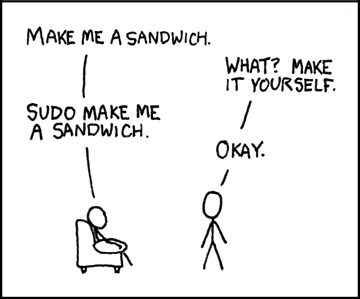
The latest Windows 11 build introduces the sudo command to the operating system. Sudo plays an essential role on BSD, Linux, and other Unix-like systems as it allows users to run commands as another user. The most common application of sudo is to run programs as the superuser.

Microsoft describes its implementation of Sudo for Windows in a single sentence:

Sudo for Windows provides a new, yet familiar way to elevate processes directly from the command-line.

This is actually all you need to know about Microsoft’s implantation. In other words, you use sudo to elevate command line instructions.

A detailed article on the Windows Command Line Dev Blog provides additional information on Sudo for Windows.

Sudo for Windows: the details

Sudo for Windows is only available in the latest Windows 11 Insider Preview build 26052. Twitter user Bob Pony discovered that you may use Sudo for Windows on older versions of the operating system already as well. Support goes all the way down to Windows 7.

While not recommended, you may download the Sudo for Windows application from the linked post and add it to the System32 directory.

The feature is not enabled by default. You may enable it by running the command sudo config –enable normal from an elevated command prompt. Replace “normal” with one of the other options below, if you prefer those.

The application supports three states:

  • In a new window (forceNewWindow) — runs the command in a new elevated window.
  • With input disabled (disableInput) — runs the command without input option in the window it was triggered from.
  • Inline (normal) — runs the command from the same window it was triggered from. Most similar to the sudo experience on *nix systems.

You find these options under System > For developers in the Windows Settings. Note that the options are not available if you copied the application manually to the System32 folder.

Tip: use the command sudo -h to display all available commands in the console.

Here is the output at the time of writing:

C:\Users\Martin\Downloads\sudo>sudo -h
Sudo for Windows

Usage: sudo [OPTIONS] [COMMANDLINE]… [COMMAND]

Commands:
run Run a command as admin
config Get current configuration information of sudo
help Print this message or the help of the given subcommand(s)

Arguments:
[COMMANDLINE]… Command-line to run

Options:
-E, –copyEnv Pass the current environment variables to the command
–newWindow Use a new window for the command
–disableInput Run in the current terminal, with input to the target application disabled
-h, –help Print help (see more with ‘–help’)
-V, –version Print version

Using Sudo for Windows

Sudo for Windows

Just prepend “sudo” in front of the command to run it elevated. The command sudo wsl.exe –install installs the Windows Subsystem for Linux. Windows would refuse to run it in an unelevated command prompt window.

With sudo, it displays an UAC prompt. Accept the prompt and the command is executed on the system. What happens next depends on the selected configuration.

  • New window — Sudo for Windows launches a new elevated console window and executes the command in that window.
  • Input closed and Inline — Sudo for Windows launches a new elevated sudo.exe process. The original sudo command establishes an RPC connection with that new process.

Closing Words

Sudo for Windows is open source. Microsoft published a new repository on GitHub that interested users may follow.

Droid

F-Droid 1.19.0 released: automatic apps updates

Posted on February 10, 2024February 10, 2024 by Martin Brinkmann

A new version of the open source privacy-friendly F-Droid app for Android is now available. F-Droid offers an alternative to Google Play. It features only free and open source software, and includes apps that are not allowed on Google Play due to Google policies.

F-Droid 1.19.0 is the latest version. It introduces a much requested feature: the ability to update apps automatically.

While F-Droid 1.19.0 is already available, it is not pushed to user devices yet. It is necessary to seek the update manually to install it.

To do so, open F-Droid on your Android device. Run a search for F-Droid and select the F-Droid result from the list of search results. Scroll down and expand Versions on the page. There you find version 1.19.0 listed. Expand the version and select the install option to start the upgrade.

F-Droid: apps auto-updates

F-Droid expert mode

The main new feature of F-Droid 1.19.0 is auto updating for installed apps. The feature works only on Android 12 or newer devices.

The team notes:

On Android 12 or later, apps will be autoupdated after the first install or first update, no root, no unlocking, no PrivExt needed.

Some older apps can not be updated automatically. F-Droid continues notify users about these apps so that they may be updated manually.

F-Droid users who prefer the old way — inform about updates, but do not auto-install — may restore the classic functionality.

This is done in the following way:

  • Open the F-Droid application on the Android device.
  • Select Settings.
  • Scroll down to the “Other” section and enable Expert mode there.
  • Scroll all the way down and enable “Force old installer”.

This option disables the new installer and thus also automatic background updates. You may undo the change at any time by toggling the force old installer preference.

Managing other repositories

F-Droid supported using other repos for adding and managing apps for some time. The functionality was limited to adding and removing repositories.

F-Droid 1.19.0 introduces a new option to add repositories. This is done either through the repositories URL or by scanning a QR code. The app fetches repository information and displays the listed apps before the repo is added to the database.

The team writes:

In short, paste repo link or use QR code, see list of apps before adding it, see apps from a single repo, all new features that make repositories a joy to use. Mirrors like to keep things chill and in the background, but they are expanding and getting easier to control, as plain servers, Tor .onion hosted or via IPFS gateways.

Other changes

The new version includes lots of improvements. Lots of apps got updated, and 11 new apps are now available in the main repository.

You may check out the official announcement of the new release here.

Google

A new look is coming soon: Google informs about new sign-in page

Posted on February 9, 2024February 9, 2024 by Martin Brinkmann

Google users who open a sign-in page on the company’s website receive a notification currently. It reads “A new look is coming soon. Google is improving its sign-in page with a more modern look and feel”.

A click on the dismiss button closes the notification on the sign-in page. There is no link or button to get more information on the change.

Google sign-in page

The current sign-in page uses multiple pages for the process of logging in to a Google account. Users need to type or paste the email address or phone number first, and then the account password to sign-in. Other authentication options, including using a Google Titan security key, are also supported.

The reason for the “a new look is coming soon” announcement

The announcement offers barely any details. Google does not reveal when it is going to change the sign-in page nor reveals how it will look like. The only information is that the page will change and that its appearance will change.

You may wonder why Google is making the announcement to users. While Google does not reveal its reason, it seems likely that the company wants users to be prepared.

Many may look critically at a different sign-in page. Some may suspect foul play or a successful attack on Google.

The announcement may help reassure some users and organizations. When the new Google sign-in page lands, users who have seen the notification may use it to log in without worrying too much about the change.

It is likely that Google is going to announce the new sign-in page officially on one of its blogs or websites shortly before or after the new page goes live.

Still, some Google users may use a search engine or interactions with an AI to make sure that the change is legitimate.

Making sure it is Google’s sign-in page

It takes just a few clicks to verify the legitimacy of a webpage. First step is to look at the URL in the address bar. Is it a Google domain? The current sign-in page starts with https://accounts.google.com/, which you may verify quickly.

It may be necessary to click or tap in the address field in some browsers, as some information may be omitted.

Check connection

Next step is to click or tap on the icon on the right of the address. This displays information about the connection. Look for “Connection is secure”, “Connection secure” or a similar message. If you see this, you are on the “real” Google sign-in page.

Now You: do you verify sign-in pages before logging in?

  • Previous
  • 1
  • …
  • 55
  • 56
  • 57
  • 58
  • 59
  • 60
  • 61
  • …
  • 69
  • Next

Support This Site

If you like what I do please support me!

Any tip is appreciated. Thanks!
  • March 2, 2026 by Martin Brinkmann Don't Bother with Windows 11's new Speedtest feature
  • February 27, 2026 by Martin Brinkmann Warning! That laptop on Amazon? It comes with temporary storage
  • February 26, 2026 by Martin Brinkmann "If your printer works today, it will continue to work": Microsoft corrects previous announcement
  • February 25, 2026 by Martin Brinkmann YouTube Premium Lite subscribers get background playback and downloads with a big "but"
  • February 24, 2026 by Martin Brinkmann Firefox 148.0 is out with its AI kill switch and support for Windows 7 and 8.1 comes to an end

About

We talk, write and dream about Technology 24/7 here at Chipp.in. The site, created by Martin Brinkmann in 2023, focuses on well-researched tech news, reviews, guides, help and more.

Legal Notice

Our commitment

Many websites write about tech, but chipp.in is special in several ways. All of our guides are unique, and we will never just rehash news that you find elsewhere.

Read the About page for additional information on the site and its founder and author.

Support Us

We don't run advertisement on this site that tracks users. If you see ads, they are static links. Ads, including affiliate links, never affect our writing on this site.

Here is a link to our privacy policy

©2026 Chipp.in Tech News and Reviews